
- Log in to your Admin account.
- From the main navigation, select Content, then Channels.
- Open the course you want to edit, or click Create New in a channel to start one.
- In the Course Builder, click the element you want to customize. A teal outline and a toolbar show it's selected.
- The Properties tab opens on the right with that element's settings. Adjust them as needed.
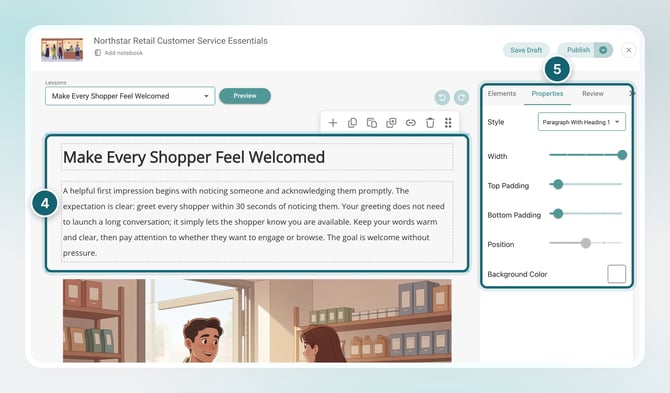
Properties change depending on the element you select. A text section has Style, Width, Padding, Position, and Background Color. An image has Change Image, Edit Image, Full-Width Image, Opacity, Link To, and Zoom on Click.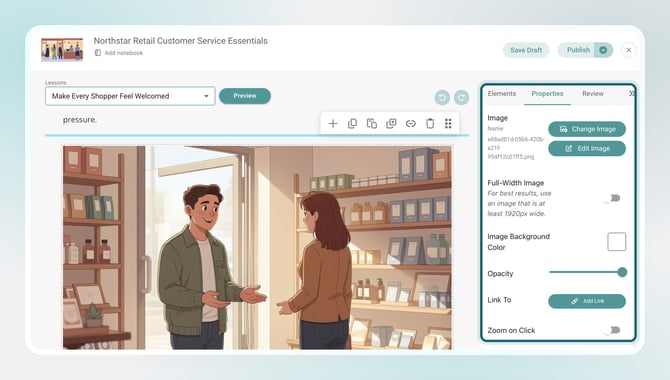
Depending on the element, you may be able to customize:
- Padding and spacing
- Sizing
- Colors
- Icons
- Background colors
- Background images
- Links
- Layout settings
Tip
Properties always shows the settings for the selected element. To change to a different element, click it first.
Next Step
Check out Preview Your Course to see how your changes look to learners.