
- Log in to your Admin account.
- From the main navigation, select Content, then Channels.
- Open the course you want to check, or click Create New in a channel to start one.
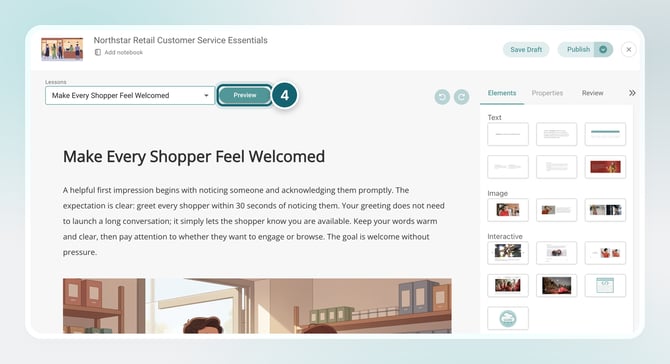
- In the Course Builder, click Preview next to the Lessons dropdown.
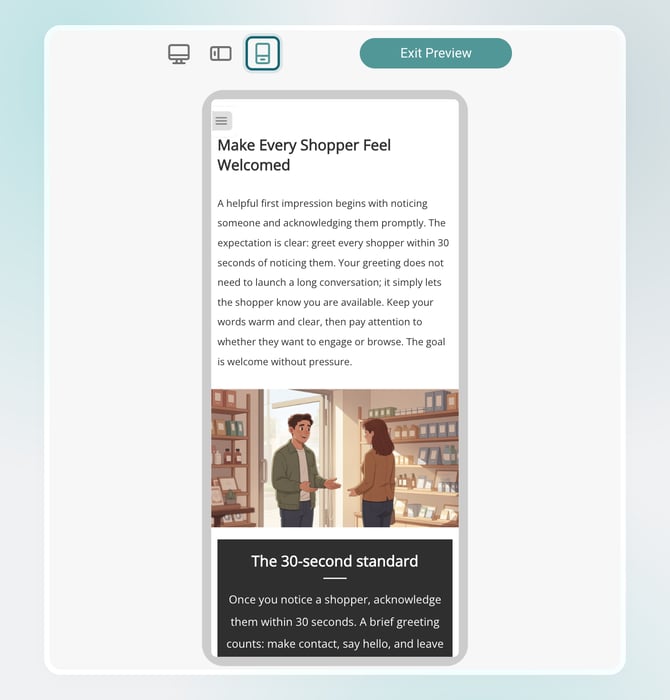
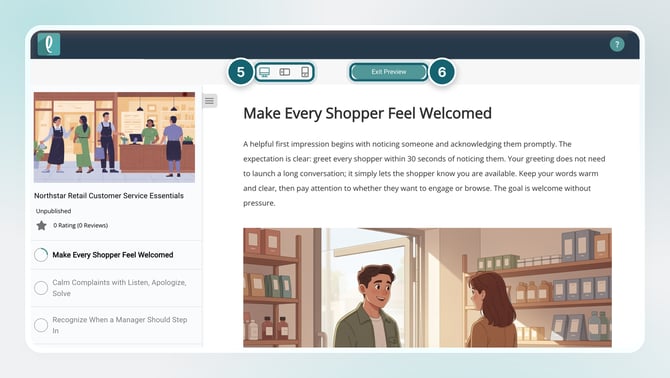
- At the top of the screen, switch between the desktop, tablet, and phone views to see how the course looks on each.
- To go back to editing, click Exit Preview.
Tip
Use preview to check layout, spacing, and how content appears across devices before publishing.
Next Step
Check out Publish Your Course to make your course available to learners.