
- Log in to your Admin account.
- From the main navigation, select Content, then Channels.
- Open the course you want to assign.
- In the course's left-hand menu, click Assignments. The Learners tab lists everyone you can assign.
- To assign one learner, turn on the Assigned toggle in their row. Click the calendar icon to add a due date.
- To assign everyone in the list at once, click Assign [#] Learners. Use the column filters first to narrow the list, for example by Location or Job Title. Unassign [#] Learners removes everyone in the list.
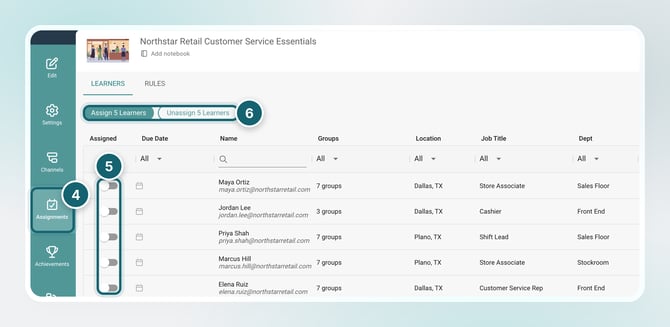
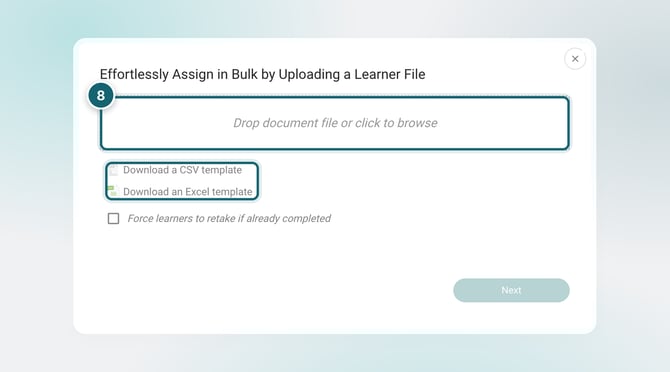
- To assign from a file, click Bulk Assign in the top right, then Assign Learners (or Unassign Learners).
- Download the CSV or Excel template, add your learners, then drop the file in or click to browse. Check Force learners to retake if already completed if needed, then click Next.
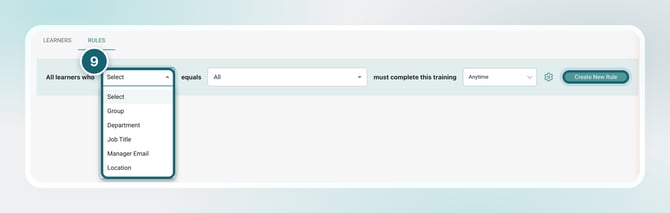
- To assign automatically, open the Rules tab. Choose a field (Group, Department, Job Title, Manager Email, or Location), pick a value, choose when learners must complete it, and click Create New Rule.
Tip
Rules let you assign training by group, role, or location instead of picking learners one by one.
Next Step
Check out Achievements Overview to learn how to recognize and celebrate learner progress.